by Rain Chu 7 月 15, 2026 | AI , skills , Tool
Graphify 最有價值的地方,是把「讀專案」這件事從一次性的上下文塞爆,改成可以重複查詢的知識圖譜, Codex、Claude Code、OpenCode、Cursor、Gemini CLI 這類 AI coding assistant 來說,最大的浪費常常不是寫程式,而是每次都重新理解同一個 codebase。
如果 OpenWiki 解決的是 Agent wiki 和文件記憶,Graphify 更像是把整個資料夾編譯成一張可追蹤的圖,它可以處理程式碼、SQL schema、R script、shell script、文件、論文、圖片,甚至影片和音訊,最後輸出 `graph.html`、`GRAPH_REPORT.md` 和 `graph.json`。
先講結論
Graphify 不是向量資料庫,也不是單純 RAG。官方說得很直接,它不用 embeddings,也不放 vector store,而是建立一張可以 traverse 的真實 graph,你可以問一個概念是什麼,也可以追兩個概念之間的 shortest path,或要求它回答某個問題時只返回相關 subgraph。
這對 coding agent 很重要,因為大型專案裡的關係不是只有語意相似,還有 import、call、inherit、mix in、schema、設定檔、文件註解和設計決策,Graphify 把這些關係轉成節點和邊,讓 Agent 不必每次都用 grep 或全文讀取重新猜。
Graphify 是什麼
Graphify 是一個 AI coding assistant skill,安裝後可以在支援的平台裡輸入 `/graphify .`,Codex 則使用 `$graphify`。它會掃描當前資料夾,把程式碼、文件、PDF、圖片和影片整理成知識圖譜。
官方快速開始很短,重點是 PyPI 套件名稱叫 `graphifyy`,不是 `graphify`。這點要記住,因為 README 特別提醒其他 `graphify*` 套件不是官方套件。
uv tool install graphifyy      # install the CLI (or: pipx install graphifyy)
graphify install               # register the skill with your AI assistant
之後在 AI assistant 裡執行。
為什麼它不是一般 RAG
一般 RAG 常見做法是切 chunk、做 embedding、進 vector store,再用語意相似度找片段。這對文件問答很好用,但對程式碼架構不一定夠。因為程式碼最重要的線索常常是顯式關係,例如某個 class 被誰繼承,某個 function 被哪裡呼叫,某個 schema 影響哪個 API。
Graphify 對 code maps 採 local-first。程式碼透過 tree-sitter AST 解析, deterministic,不需要 LLM,也不會把程式碼送出本機。文件、PDF、圖片和影片這類語義 pass 才會使用 assistant model 或你設定的 API key。
EXTRACTED 和 INFERRED 是關鍵
Graphify 很值得學的一點,是它會標記每條邊的來源。`EXTRACTED` 代表關係明確存在於來源裡,`INFERRED` 代表由 Graphify 推導出來。這比單純把答案講得很肯定更重要,因為 Agent 常犯的錯不是沒有答案,而是不知道哪些是看到的,哪些是猜的。
aivi 的整理還提到第三類 `AMBIGUOUS`,代表不確定的關係要留給人工審查。這種設計很適合放進團隊工作流,因為架構理解不該只追求自動化,也要保留可審計性。
輸出檔案怎麼看
一次執行後,最核心的是三個檔案。
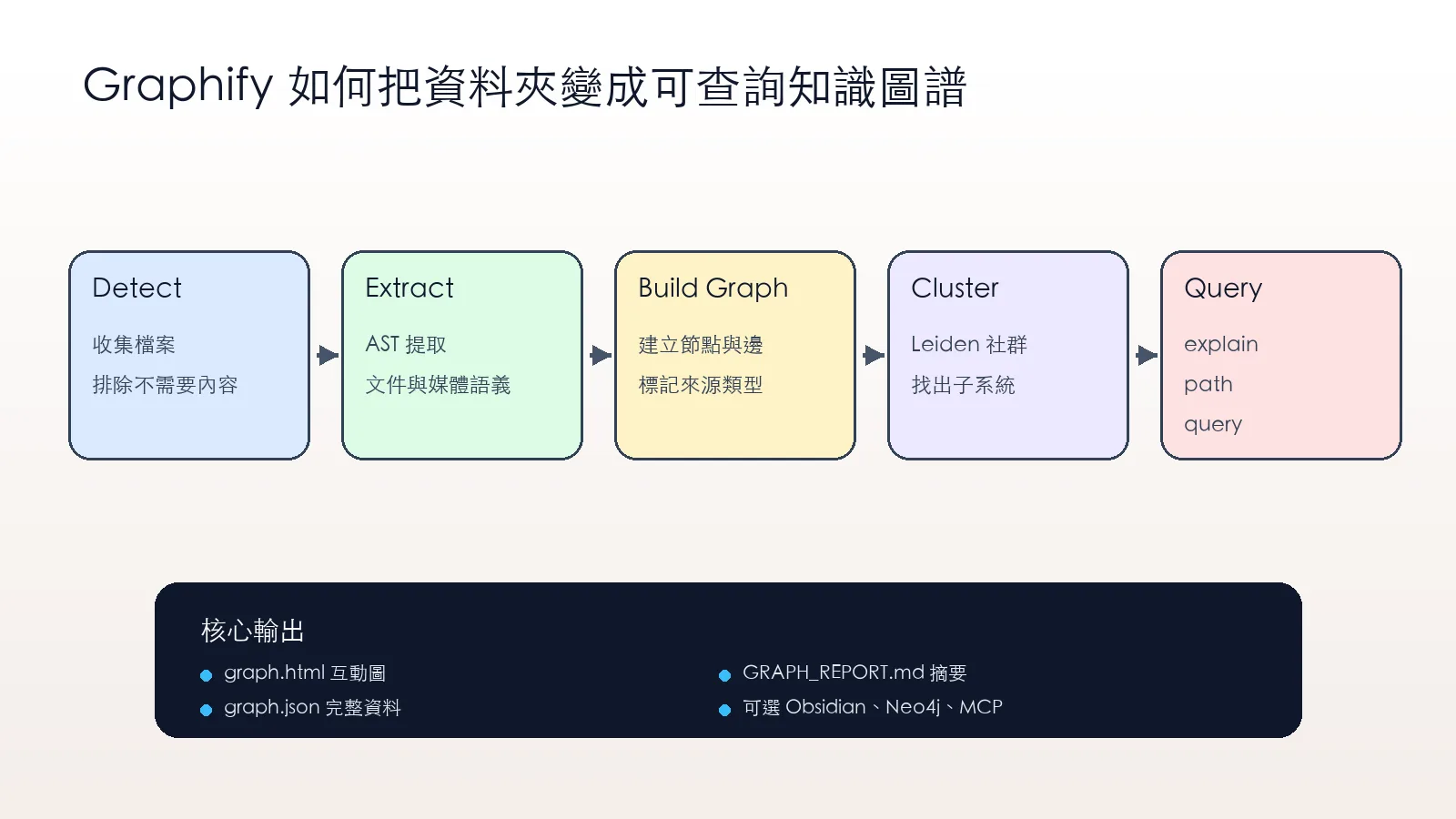
檔案 用途 我會怎麼用 graph.html 互動式圖譜 快速看社群、節點和跨模組關係 GRAPH_REPORT.md 摘要報告 讓 Agent 先讀專案重點和建議問題 graph.json 完整圖資料 後續 query、path、explain 不必重讀所有檔案
Graphify 的核心流程是偵測檔案、抽取關係、建立 graph、切分社群,最後讓 Agent 可以 query、path、explain。 最適合哪些場景
我會優先用在三種情境。
第一,接手陌生 codebase,需要先知道核心節點和模組邊界。
第二,專案同時有 app code、database schema、infra script 和文件,單純全文搜尋很難看出關係。第
三,研究資料夾裡有論文、截圖、筆記和實驗程式,需要把概念關係串起來。
這和我前面整理的 OpenWiki 可以搭配。OpenWiki 偏向替 Agent 建立 wiki 記憶,Graphify 偏向把來源資料拆成可查詢 graph。兩者放在一起,就是文件記憶加關係推理。
Benchmark 怎麼解讀
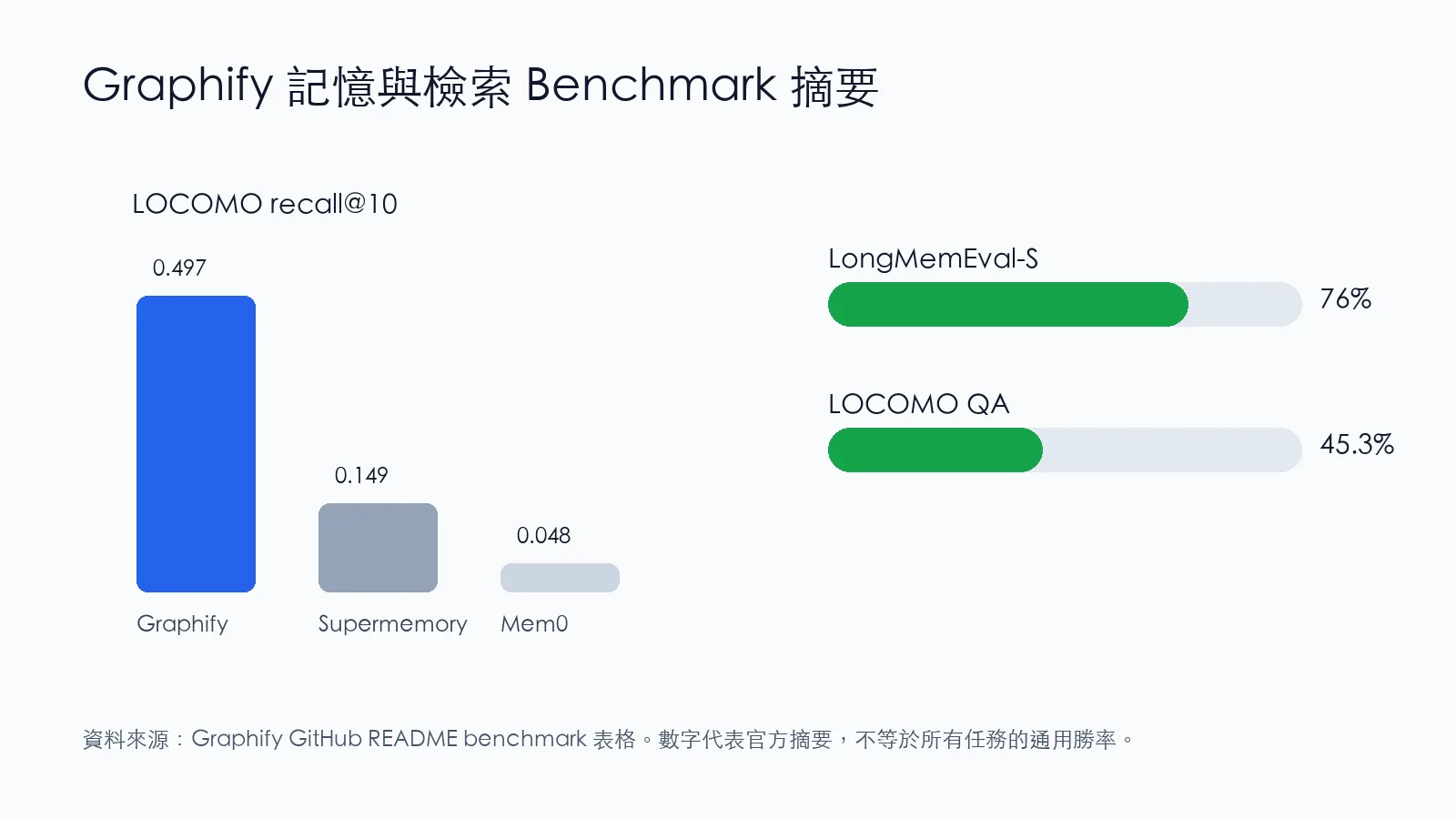
官方 README 摘要裡列了幾個 benchmark。LOCOMO recall@10 是 0.497,對照 mem0 的 0.048 和 supermemory 的 0.149,差距很大。LOCOMO QA accuracy 是 45.3%,低於 supermemory 的 49.7%,但高於 mem0 的 27.3%。LongMemEval-S QA accuracy 則是 76%,官方標註和 dense RAG tied。
這些數字適合當成方向參考。Graphify 的價值不只是單點 QA,而是能把關係路徑保存下來讓 Agent 反覆查詢。 Codex 使用要注意什麼
Graphify 支援 20 個以上 assistant 平台。對 Codex 使用者來說,官方特別提到 Codex 用 `$graphify`,不是 `/graphify`。另外如果要做 parallel extraction,需要在 `~/.codex/config.toml` 的 `[features]` 下設定 `multi_agent = true`。
這點和 Codex 作為 AI 代理 的方向很搭。Codex 如果只靠當下上下文,很容易在大型 repo 裡反覆找檔案。Graphify 可以先把核心結構整理好,讓後續任務更像查地圖,而不是每次重新探路。
可以匯出到 Obsidian、Neo4j 和 MCP
aivi 的整理提到 Graphify 有很多可選輸出,包括 Obsidian、SVG、GraphML、Neo4j Cypher、直接推送 Neo4j、MCP server 和 wiki 風格 Markdown。這代表它不是只服務某一個 assistant,而是可以把 graph 變成團隊知識資產。
如果你已經有 GraphRAG 使用本地 Ollama 的經驗,可以把 Graphify 看成更偏工程專案的知識圖譜入口。它不是取代 GraphRAG,而是把 repo、文件與工程關係先整理成一個可操作的圖。
我會怎麼導入
第一步只跑 code。因為 code map 是 local-first,不需要 LLM token,風險最低。
第二步打開 `graph.html` 看社群是否合理,再讀 `GRAPH_REPORT.md`,確認 god nodes 和 surprising connections 是否真的有幫助。
第三步才把 docs、PDF、圖片或影片加進來,並明確估算語義 pass 會用到哪個模型和多少成本。
如果是私有專案,我會先禁用媒體語義分析,只讓 tree-sitter 解析程式碼。等到確定 graph 有價值,再逐步開文件和圖片。這樣比較符合安全直覺,也不會一開始就把整個公司資料夾丟進模型。
我的判斷
Graphify 的核心價值不是炫酷的圖,而是讓 Agent 對大型專案有可追溯的結構記憶。它把「讀懂專案」變成一個可重複、可更新、可查詢的輸出,而不是每次都靠模型臨場發揮。
我會把它放進 AI coding 工作流的前置步驟。陌生 repo 先 Graphify,需求進來前先看 graph report,修改前查 path,修改後用 hook 或 watch 更新圖譜。這樣 Agent 比較不會只看局部檔案就亂改。
延伸資源
FAQ
Graphify 和 RAG 有什麼不同?
RAG 常用向量相似度找片段,Graphify 建立可 traversal 的知識圖譜。它更重視 import、call、inherit、文件引用和設計決策這類關係。
Graphify 會把程式碼送到雲端嗎?
程式碼 map 是 local-first,透過 tree-sitter AST 解析,不需要 LLM。文件、PDF、圖片和影片的語義分析才會使用 assistant model 或你設定的 backend。
Codex 可以用 Graphify 嗎?
可以。官方支援 Codex,並提醒 Codex 使用 `$graphify`。若要 parallel extraction,需要在 Codex config 啟用 `multi_agent = true`。
Graphify 適合私有專案嗎?
適合先從程式碼圖譜開始,因為 code parsing 可以本地完成。若要分析文件、圖片或影片,建議先確認使用的模型和資料外送邊界。
by Rain Chu 7 月 15, 2026 | AI , skills , Tool
OpenWiki 最值得看的地方是它把 Agent 需要的上下文整理成可以持續更新的本地 wiki,對每天用 Codex、Claude Code、Hermes 或其他 coding agent 的人來說,真正麻煩的不是模型不夠聰明,而是每次開工都要重新解釋專案背景、設計理由、檔案位置和過去踩過的坑。
OpenWiki 的定位很清楚,它是一個 CLI,會替 codebase 或個人知識來源寫出 agent wiki,更精準一點說,它不是給人類慢慢翻的漂亮文件站,而是替 Agent 準備的第二大腦。
先講結論
OpenWiki 解決的是上下文斷裂,Code mode 會在目前 repository 產生 `openwiki/` 文件,並維護 `AGENTS.md` 和 `CLAUDE.md`,讓 coding agent 知道要先看 wiki。Personal mode 則把本地 repo、Notion、Gmail、Web Search、Hacker News、X 等來源整理成 `~/.openwiki/wiki`,比較像個人知識庫。
我會把它放在 Codex 與 GPT-5.6 合體成 AI 代理 之後的下一步,Agent 能不能做事,除了模型能力,也取決於它拿到的記憶是不是乾淨、穩定、可追溯。OpenWiki 就是在補這一層。
OpenWiki 是什麼
OpenWiki 是 LangChain 推出的 CLI,官方 README 的描述是,它會替 codebase 或 purpose memory 寫出並維護 agent wiki,也能透過內建 connectors 或 git repositories 擷取本地知識來源,再合成成本地 wiki。
它有兩種主要模式。Code mode 是針對目前程式碼倉庫,建立 repository documentation。Personal mode 是針對個人知識來源,建立本地 personal brain wiki。這兩個模式很像,但適合的工作不一樣。
模式 輸出位置 適合用途 我會怎麼用 Code mode `openwiki/` 替單一 repo 建立 Agent 文件 每個專案都放一份,搭配 Codex 和 Claude Code Personal mode `~/.openwiki/wiki` 整理個人知識、郵件、Notion、Web Search 做跨專案的研究記憶與決策索引
它不是 Obsidian 換皮
如果只看個人知識庫,Obsidian 加 Git 加 Claude CLI 確實能做到很多事情,但 OpenWiki 真正有差異的地方是 code mode,它會跟 repository 放在一起,程式碼變動後可以更新文件,甚至透過 CI 開 PR 或 merge request,讓文件跟著專案一起走。
這和一般筆記最大不同在於責任邊界。Obsidian 很適合人類整理想法,但 coding agent 更需要可被任務流程穩定引用的專案上下文。OpenWiki 會維護 `AGENTS.md` 和 `CLAUDE.md` 裡自己的區塊,讓 Agent 進 repo 後知道要先參考 wiki,而不是每次都重新掃整個專案。
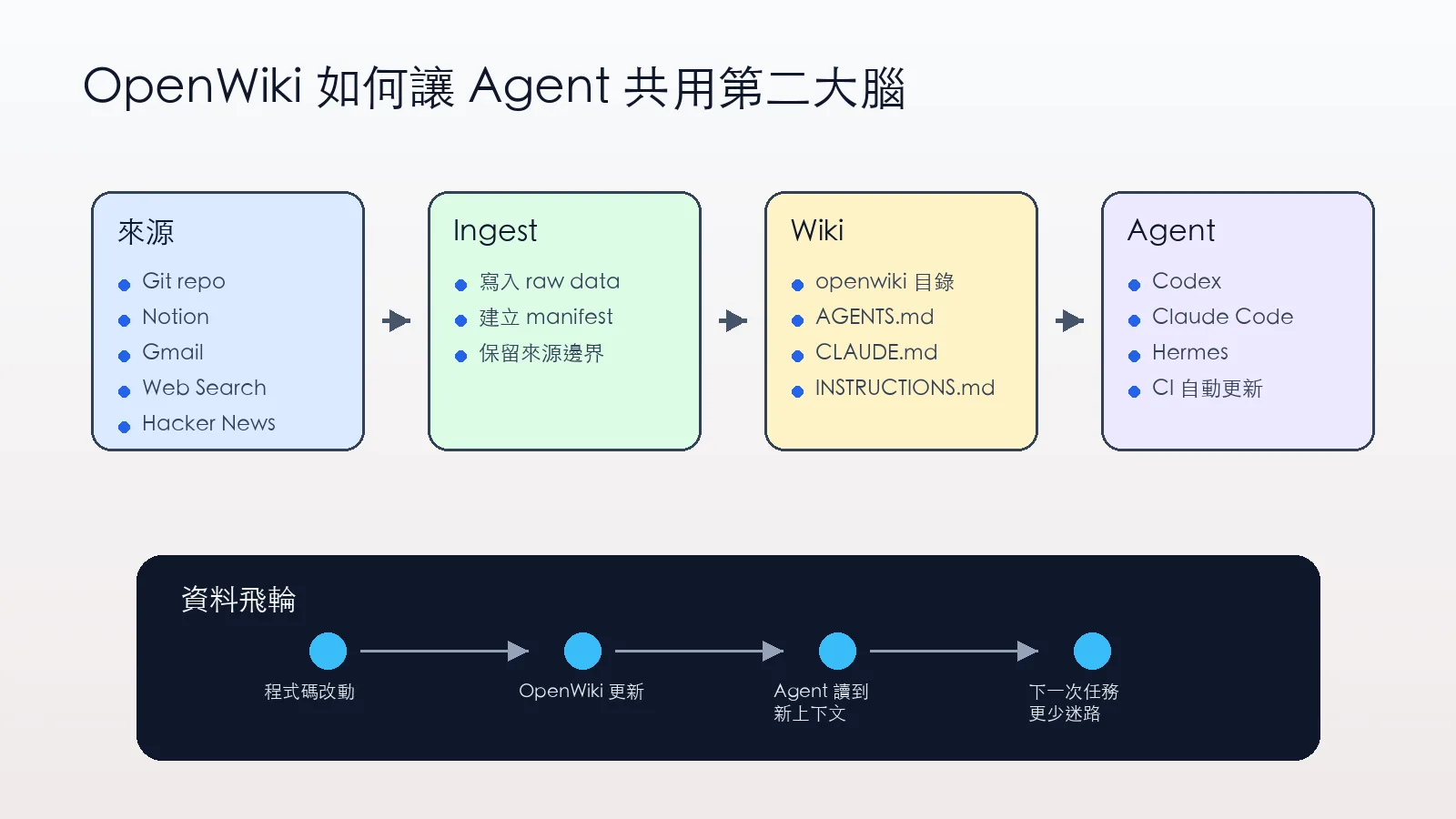
OpenWiki 的重點不是單次產生文件,而是讓資料來源、wiki、Agent 和 CI 更新形成循環。 資料飛輪怎麼形成
OpenWiki 的資料飛輪可以拆成四步。
第一,把本地 repo、Notion、Gmail、Web Search、Hacker News 或 X 這些來源接進來。
第二,connector 先把 raw data 和 manifest 寫到本機。
第三,由 Agent 把來源資料整理成 wiki。
第四,下一次 Codex 或 Claude Code 做事時,先讀 wiki,再開始改 code。
這個流程可以降低「每次都從零開始理解專案」的成本,你之前如果有把 Claude Code、Codex、Hermes 放進同一個 AI 工作流 ,OpenWiki 就像是替這些工具加上一個共用的專案記憶層。
支援 ChatGPT login 這點很關鍵
OpenWiki 官方 README 裡有一段很重要。它支援 `openai-chatgpt` provider,可以透過 ChatGPT login 呼叫 OpenAI 的 Codex backend。也就是說,如果你有 ChatGPT Plus、Pro 或 Team 的 Codex 使用量,可以走訂閱方案裡的額度,而不是每次都用 OpenAI API token 計費。
OpenWiki 的設定方式是用 `OPENWIKI_PROVIDER=openai-chatgpt openwiki code –init` 或 `OPENWIKI_PROVIDER=openai-chatgpt openwiki personal –init` 進入 setup wizard,完成瀏覽器登入後,token 會存在 `~/.openwiki/.env`。refresh token 要當成密碼看待,不要同步到 Git,也不要放進任何公開筆記。
本地模型能不能拿來整理 wiki
個人 wiki 可能包含私密資料,全部丟給閉源模型不一定舒服,而且資料量一大,token 成本也會變成長期開銷。OpenWiki 支援 openai-compatible provider,所以理論上可以接 LiteLLM gateway、本地推理服務或任何 OpenAI 相容 endpoint。
但本地模型不是只看能不能跑。wiki 任務真正需要的是長上下文理解、文件分段、引用來源、去重、摘要穩定度和低幻覺。我的測法會很簡單:拿同一個 repo 跑 code mode,檢查它產出的模組邊界、安裝步驟、資料流、風險說明是否和實際程式一致。再拿一組故意放錯的文件,看模型會不會照抄錯誤資訊。
如果要走本地模型,我會先從 Qwen、DeepSeek 或其他長上下文模型開始,並搭配 本地大模型推理框架比較 裡提到的推理服務來測延遲和成本。若知識庫偏圖表、截圖或 PDF,再把 Docling 文件解析 這類工具放到前處理層。
資料要放同一個 wiki 還是分開
不是所有資料都應該塞進同一個知識庫。Code mode 的 wiki 應該跟 repo 綁定,保存專案架構、重要決策、開發流程、CI 和部署資訊。Personal mode 則放跨專案知識,例如研究筆記、工具比較、常用 prompt、會議記錄和文章素材。
如果全部混在一起,Agent 很容易在錯誤上下文裡找答案,比較好的做法是把 wiki 當成多個 source instance,而不是一個巨大雜物箱。OpenWiki 的 connector 設計也支援這種想法,例如可以建立不同的 Web Search source,一個追 AI research,一個追別的主題。
CI 自動更新才是重點
OpenWiki 支援把 update workflow 放進 GitHub Actions、GitLab CI 或 Bitbucket Pipelines。對我來說,這比第一次產生 wiki 更重要。因為文件真正會壞掉的地方,不是第一天沒寫,而是第三十天程式已經改了五輪,文件還停在舊狀態。
如果你的工作流已經開始讓 AI Agent 直接改程式,那文件也應該跟著 PR 更新,這可以和 讓 AI Agent 開工前先問清楚需求 放在一起看。前者讓需求更清楚,OpenWiki 則讓專案記憶更穩定。
第一次可以這樣試
安裝方式很直接。
針對目前 repository 建立 code wiki。
openwiki --init
openwiki --update
如果要測 ChatGPT login,則用 provider 指定。
OPENWIKI_PROVIDER=openai-chatgpt openwiki code --init 如果要更新個人知識庫,用 personal mode。
openwiki personal --init
openwiki personal --update
我的判斷
OpenWiki 比較像 Agent 工作流裡的基礎設施,而不是單純的筆記產品,如果你只有一個人、一個小專案,Obsidian 加 Git 可能已經夠用。但只要你開始讓多個 Agent 工具輪流碰同一個 repo,或想讓個人研究資料變成可重複使用的任務上下文,OpenWiki 就值得試。
我最看重的是 code mode、CI 更新、ChatGPT login 和 openai-compatible provider,這四個點合在一起,代表它可以同時服務雲端模型、本地模型、訂閱制 Codex 使用量,以及團隊裡的多 Agent 協作。
延伸資源
FAQ
OpenWiki 和 Obsidian 最大差異是什麼?
Obsidian 偏人類筆記,OpenWiki 偏 Agent 可讀的工作上下文。OpenWiki 的 code mode 會和 repository 綁定,並維護讓 Agent 參考 wiki 的提示文件。
OpenWiki 可以不用 OpenAI API key 嗎?
可以。官方支援 `openai-chatgpt` provider,可以用 ChatGPT login 走 Codex backend。它也支援 openai-compatible provider,可以接相容 endpoint。
個人資料適合放進 OpenWiki 嗎?
可以,但要先想清楚 provider 和資料邊界。私密資料建議優先測本地模型或可信任的私有 endpoint,並避免把 `~/.openwiki/.env` 同步到 Git。
OpenWiki 適合團隊使用嗎?
適合用在程式碼專案。搭配 GitHub Actions 或 GitLab CI,可以讓文件跟著程式碼更新,降低 Agent 和新人讀錯舊文件的機率。
by Rain Chu 7 月 15, 2026 | 未分類
開源 TTS 最近很熱,但 dots.tts 值得特別看,原因不是只有聲音像,而是它把文字轉語音的路線又往前推了一步,它是一個 2B 參數的全連續端到端自回歸 TTS 系統,官方說明裡最關鍵的一句話是,整條管線不使用離散 token,而是用連續 latent 來完成語音生成。
如果你已經看過 Qwen3-TTS 的音色設計 ,或之前玩過 VoxelCPM 本地聲音復刻 ,dots.tts 可以放在同一條脈絡裡理解,以前很多 TTS 工具在可用性上已經不差,現在競爭點開始變成音色相似度、情緒穩定度、跨語言保真,以及能不能進一步做成即時語音 Agent 的底層能力。
先講結論
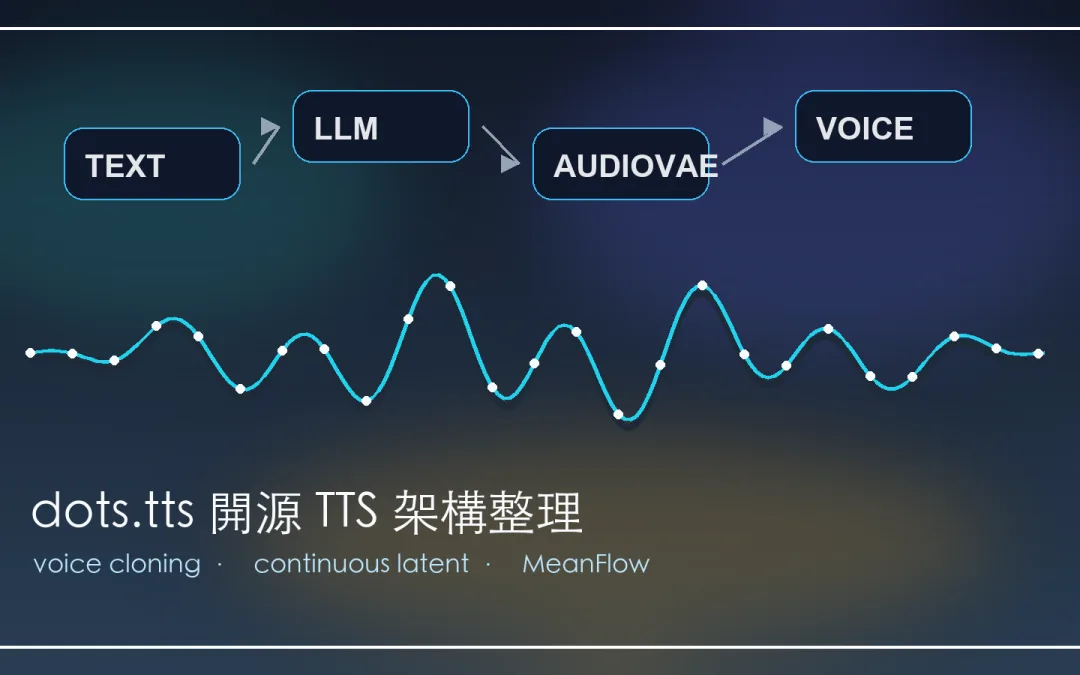
dots.tts 最適合被理解成一個偏研究與工程兼具的開源 TTS 底座。它不是只把文字念出來,而是把語意編碼器、LLM、自回歸 flow-matching 聲學頭、48 kHz AudioVAE 和 speaker x-vector 接成一條完整語音生成管線。
它目前最吸引人的地方有三個。
第一,官方釋出 pretrained、SCA 和 MeanFlow distilled 三種 checkpoint。
第二,SCA 版本主打更好的 voice cloning 表現。
第三,MeanFlow 版本用比較少的取樣步數換取推理速度,比較適合在產品或本地服務裡評估。
dots.tts 是什麼
dots.tts 是一個 2B 參數的 fully continuous end-to-end autoregressive text-to-speech 系統。官方 README 寫得很直接,它的骨幹由 semantic encoder、LLM 和 autoregressive flow-matching acoustic head 組成,底層則接 48 kHz AudioVAE。
這裡的重點是 fully continuous。傳統語音生成常會把聲音先離散化成 codec token,再讓模型預測 token,dots.tts 選擇不要走這條路,而是在連續 latent 空間裡處理語音。這個設計會讓架構更複雜,但它也讓音色、韻律和情緒細節有更大的保留空間。
三個 checkpoint 怎麼選
官方目前釋出三個 Hugging Face checkpoint,它們共用同一個 backbone,差別在品質、速度與對 voice cloning 的優化方向。
我會先從 dots.tts-soar 開始測,因為 voice cloning 通常是大家最在意的部分。如果要做服務化,才把 dots.tts-mf 拉進來比較延遲與硬體成本。
它的架構重點
官方架構可以拆成四層來看。AudioVAE 負責把 48 kHz mono waveform 編碼成連續 latent,也負責還原成聲音。Semantic encoder 會把新生成的 VAE patch 重新編碼成較緊湊的語意表示,LLM 由 Qwen2.5 1.5B Base 初始化,直接吃 BPE text。最後的自回歸 flow-matching acoustic head 則負責預測下一段聲音 latent。
這個設計有一個很有意思的方向。它不只是 TTS,也比較像是在替語音互動系統準備底座,官方提到 1T1A interleaved mode,可以讓一個 BPE token 和一個 audio step 交錯,目標是低延遲 streaming。這就會和 本地即時語音 Agent 的方向接起來。
數據上有多強
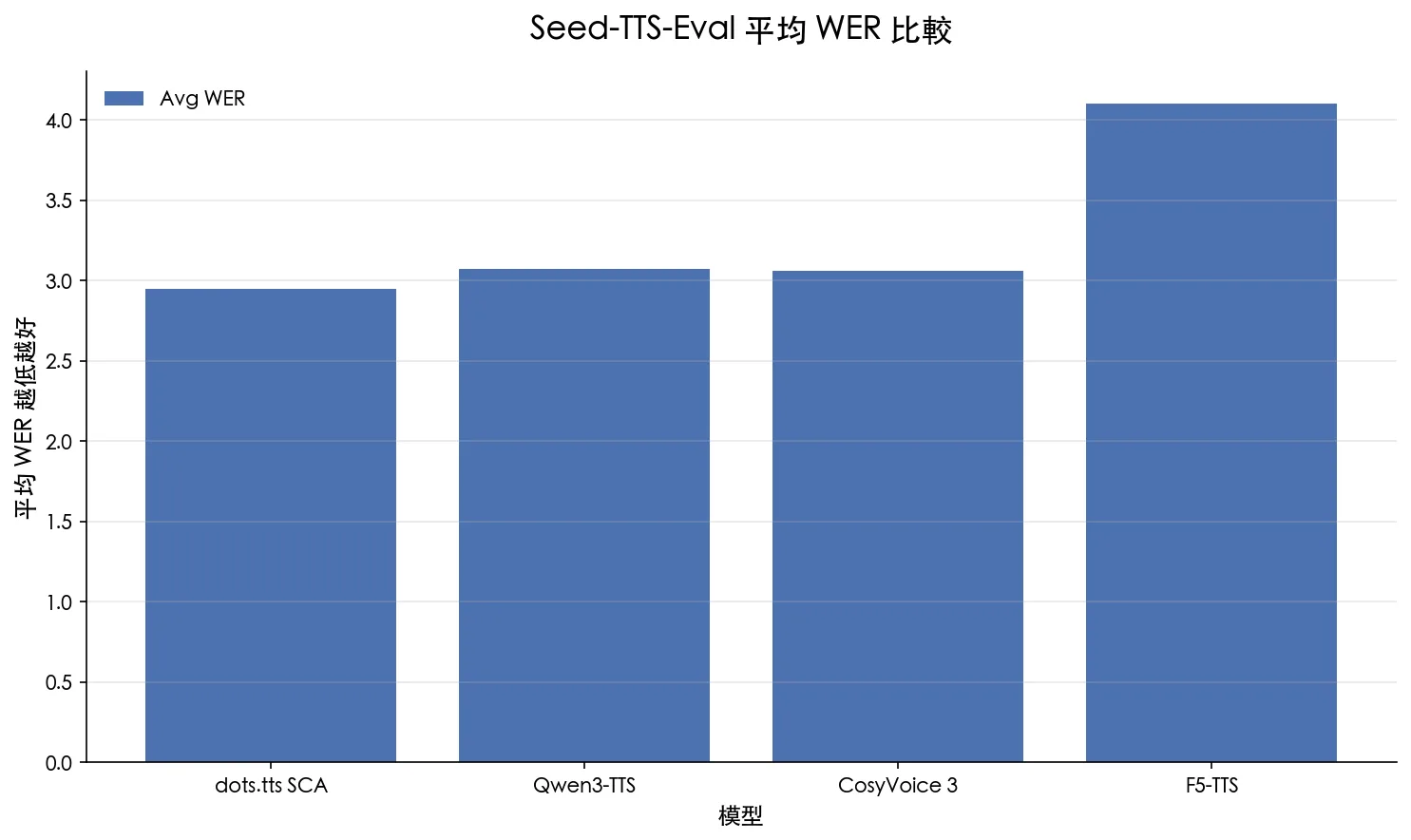
官方 benchmark 裡最直觀的是 Seed-TTS-Eval,dots.tts SCA 在中文測試的 WER 是 0.94,英文是 1.30,中文 hard set 是 6.60,平均 WER 是 2.95。這組數字和 Qwen3-TTS、CosyVoice 3、F5-TTS 放在一起看,已經是開源 TTS 裡非常前段的位置。
模型 參數量 英文 WER 中文 WER 中文 hard WER 平均 WER dots.tts SCA 2B 1.30 0.94 6.60 2.95 Qwen3-TTS 1.7B 1.23 1.22 6.76 3.07 CosyVoice 3 1.5B 2.22 1.12 5.83 3.06 F5-TTS 0.3B 2.00 1.53 8.67 4.10
平均 WER 越低代表文字內容錯誤率越低。這張圖只取官方 README 表格中的部分模型,方便快速比較。 另一個值得注意的是 MiniMax Multilingual ,官方寫到 dots.tts SCA 的平均 speaker similarity 是 83.9,並且在 24 種語言裡有 19 種取得 SIM 領先,另有 2 種並列,這代表它的聲音相似度不是只在中文或英文好看,而是有跨語言保存音色的能力。
本地部署先看這幾件事
官方建議用 Python 3.10 到 3.12 開新的 conda environment,再從 source 安裝。這類語音模型通常對套件版本很敏感,所以我會照官方 constraints 跑,不會一開始就混用自己環境裡的 torch、transformers 或音訊套件。
conda create -n dots_tts python=3.10 -y
conda activate dots_tts
python -m pip install --upgrade pip
python -m pip install -e . -c constraints/recommended.txt
最小測試可以用 CLI。voice cloning 建議給一段乾淨 reference audio,官方建議大約 10 秒就好,太長不會帶來更好的結果。更重要的是 prompt text 要和 reference audio 實際說的內容一致,不一致會讓穩定度變差,甚至出現 word-level 錯誤。
dots.tts --model-name-or-path rednote-hilab/dots.tts-soar --text "這是一段語音合成測試" --prompt-audio /path/to/reference.wav --prompt-text "參考音訊實際說出的文字" --num-steps 10 --output clone.wav 我會怎麼測 dots.tts
第一輪不要急著做長文朗讀,先準備三種 reference audio,分別是乾淨女聲、乾淨男聲、帶一點情緒的自然說話,每段控制在 8 到 12 秒,背景聲音越少越好,然後用同一段中文、英文和中英混合文字跑三次,看它的穩定度和語言切換表現。
第二輪才測情緒與語氣,這裡不要只聽像不像,還要看文字內容是否漏字、重複、破音,還有語尾是否自然,TTS 如果只追求音色相似,很容易忽略可讀性,真正能進工作流的 TTS,應該是長時間輸出也不容易出錯。
第三輪測 streaming,官方 Python API 提供 generate_stream,這對語音助理、客服機器人、角色互動很重要,這也能和我之前整理的 audio.cpp 本地語音 AI 底座 放在一起看,未來本地語音工作流很可能會走向 ASR、LLM、TTS 都可替換的模組化架構。
限制也要先看清楚
dots.tts 不是所有語言都一樣穩,官方風險與限制裡提到,低資源語言會有 WER gap,特別是阿拉伯文、印地文、土耳其文、越南文這類資料覆蓋比較吃緊的語言,它可以保住 speaker similarity,但文字正確率不一定跟高資源語言一樣漂亮。
另一個限制是訓練資料偏 speech-heavy,AudioVAE 雖然原則上是 modality-agnostic,但這次釋出的模型不涵蓋唱歌,也不是統一的 speech 加 sound generation 模型。所以如果你的需求是歌曲翻唱、音效生成或完整聲音設計,它不是最直接的答案。
我的判斷
dots.tts 最值得關注的不是 3 秒復刻這種口號,而是它把開源 TTS 拉到更接近產品級底座的位置,2B 參數、連續 latent、自回歸 flow matching、SCA 對齊、MeanFlow 蒸餾,這些都不是單純 demo 型專案會一次放齊的東西。
如果你只是想快速產生中文旁白,現成工具可能更省事,如果你想研究本地 voice cloning、即時語音 Agent、跨語言音色保留,或把 TTS 放進自己的產品工作流,dots.tts 很值得列入測試清單 。
延伸資源
FAQ
dots.tts 適合拿來做聲音復刻嗎?
適合評估,尤其是 dots.tts-soar。官方把它定位成 voice cloning 表現最好的 checkpoint,但實際品質仍取決於 reference audio 是否乾淨,以及 prompt text 是否和參考音訊一致。
dots.tts-mf 和 dots.tts-soar 差在哪裡?
dots.tts-soar 偏向品質與聲音復刻,dots.tts-mf 是 MeanFlow distilled student,官方建議 4 steps,目標是降低推理成本與提升速度。
參考音訊要多長?
官方建議大約 10 秒。更長不一定更好,乾淨、高取樣率、低背景噪音、自然說話,比單純拉長音訊更重要。
dots.tts 可以做唱歌或音效生成嗎?
不建議把它當成這類任務的主要方案。官方限制裡寫到這次釋出偏 speech-heavy,沒有覆蓋唱歌,也不是 speech 加 sound 的統一生成模型。
by Rain Chu 7 月 15, 2026 | Agent , AI
Windows 跑 AI Agent,真正的關鍵不是把所有工具硬裝進 PowerShell,而是把 Windows 當成桌面和硬體入口,把 Linux 工具鏈交給 WSL 2,這樣做的好處很直接:Python、Node、Docker、Git、CUDA、各種開源 Agent 工具,都會更接近它們原本被設計和測試的環境。
我的判斷是,如果你在 Windows 上做 Codex、Claude Code、Cursor、OpenCode、本地模型或自動化 Agent,WSL 2 幾乎是標準底座,不是因為 Windows 不行,而是 AI Agent 這一波工具鏈大多先從 Linux 生態長出來。
先講結論
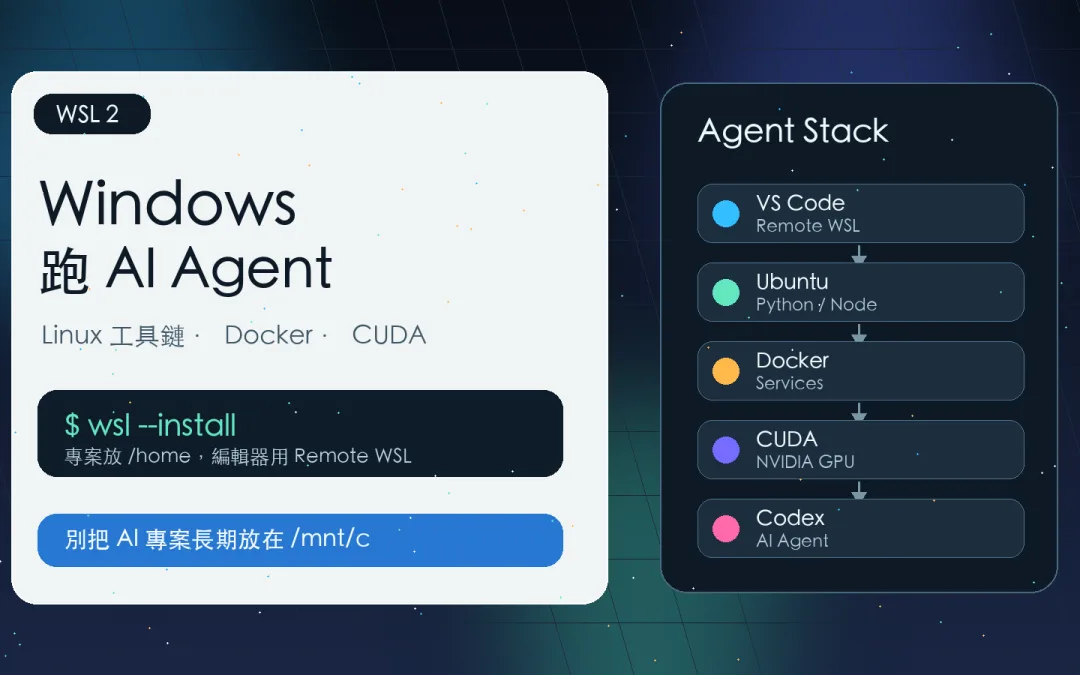
Windows 11 或新版 Windows 10 可以用 `wsl –install` 安裝 WSL,預設會走 WSL 2。
AI Agent 專案建議放在 WSL 的 `/home` 目錄,不要長期放在 `/mnt/c`。
VS Code 建議用 Remote WSL,讓編輯器在 Windows,工具鏈在 Linux。
Docker Desktop 可以啟用 WSL 2 backend,適合需要容器化 Agent 服務的人。
NVIDIA GPU 可以在 WSL 2 裡用 CUDA,但重點是安裝 Windows 端驅動,不要在 WSL 裡裝 Linux 顯示驅動。
為什麼 Windows 跑 AI Agent 需要 WSL
Microsoft 對 WSL 的定位很清楚:讓開發者可以在 Windows 上直接使用 Linux distribution、Linux 應用、工具和 Bash 命令列,而且不需要傳統虛擬機或雙系統。對 AI Agent 來說,這剛好補上 Windows 和開源工具鏈之間的落差。
很多 Agent 專案會同時碰到 Python、Node、Playwright、ffmpeg、SQLite、Docker、Git hooks、shell scripts。這些東西在 Linux 裡比較自然,在 Windows 原生環境則容易遇到路徑、權限、編碼、套件編譯和命令差異。
如果你正在使用 Codex 與 ChatGPT Work ,或想把 OpenWork 和 OpenCode 桌面工作台 跑穩,WSL 可以讓 Windows 變成比較舒服的 Agent 開發機,而不是一直在修環境。
第一步:安裝與確認 WSL 2
Microsoft 官方文件建議,在符合版本的 Windows 上,可以用系統管理員 PowerShell 執行:
安裝後可以用下面指令查看 distribution 和 WSL 版本:
如果你有多個 Linux distribution,可以用 `wsl.exe –set-default` 設定預設環境。對大多數 AI Agent 使用者,我會建議先用 Ubuntu,原因不是它最酷,而是教學、套件、問題排查和相容性資料最多。
第二步:專案不要放在 /mnt/c
這是最常見的坑。Microsoft 文件明確建議,如果你主要在 Linux 命令列裡工作,專案檔案應該放在 WSL 檔案系統內,例如 `/home/你的帳號/projects`。不要把主要專案放在 `/mnt/c/Users/…` 下面長期開發。
原因是跨 Windows 和 Linux 檔案系統會影響效能,也可能讓檔案權限、大小寫、watcher、node_modules、Python venv 出現奇怪問題。AI Agent 工作流常常有大量小檔案、快取、套件安裝和檔案監看,這種差異會被放大。
簡單說:Linux 工具鏈處理的專案,就放 Linux 檔案系統,需要從 Windows 檔案總管打開時,可以在 WSL 目錄下執行:
explorer.exe .第三步:VS Code 用 Remote WSL
不要把 VS Code 直接開在 Windows 路徑裡,再讓終端機切來切去。比較乾淨的方式是安裝 VS Code 的 WSL 支援,從 WSL 裡開專案:
code .這樣 UI 還是在 Windows,但 extension host、terminal、語言服務和套件環境會跑在 WSL。對 Python、Node、Rust、Go、Docker compose、Playwright 這類 Agent 常用工具,這種模式會少很多不必要的摩擦。
第四步:Docker 交給 WSL 2 backend
很多 AI Agent 工具會需要資料庫、瀏覽器服務、向量資料庫、Redis、sandbox 或 API mock。這時候 Docker 是很自然的選擇。Docker Desktop 支援 WSL 2 backend,可以讓 Windows 上的容器工作流更接近 Linux。
我會把它看成「可複製環境」的保險。今天你在 Windows WSL 跑得起來,明天移到 Linux server 或雲端 VM,踩坑會少很多。這和我之前整理 Docker 跟 command line 一樣使用 的方向一致,容器不是炫技,而是讓環境可重現。
第五步:GPU 和 CUDA 要小心裝
如果你要跑本地模型、推理框架或 CUDA 工具,WSL 2 可以吃到 NVIDIA GPU,NVIDIA 官方文件的關鍵提醒是:安裝 Windows 端 NVIDIA 驅動後,CUDA 驅動會映射進 WSL,不要在 WSL 裡安裝 Linux 顯示驅動。
這點很重要。很多人一進 Ubuntu 就照 Linux 教學裝完整 NVIDIA driver,反而把環境弄壞,WSL 裡需要的是相容的 CUDA toolkit 和使用者空間工具,不是另一套 Linux 顯示驅動。
如果你在 Windows 上遠端連自己的 AI server,可以參考我之前寫的 Windows PowerShell 連接 Ollama AI Server 。如果是要本機推理,則更需要把 WSL、GPU driver、CUDA 和模型框架的版本關係先整理好。
Windows 跑 AI Agent 的 WSL 檢查表
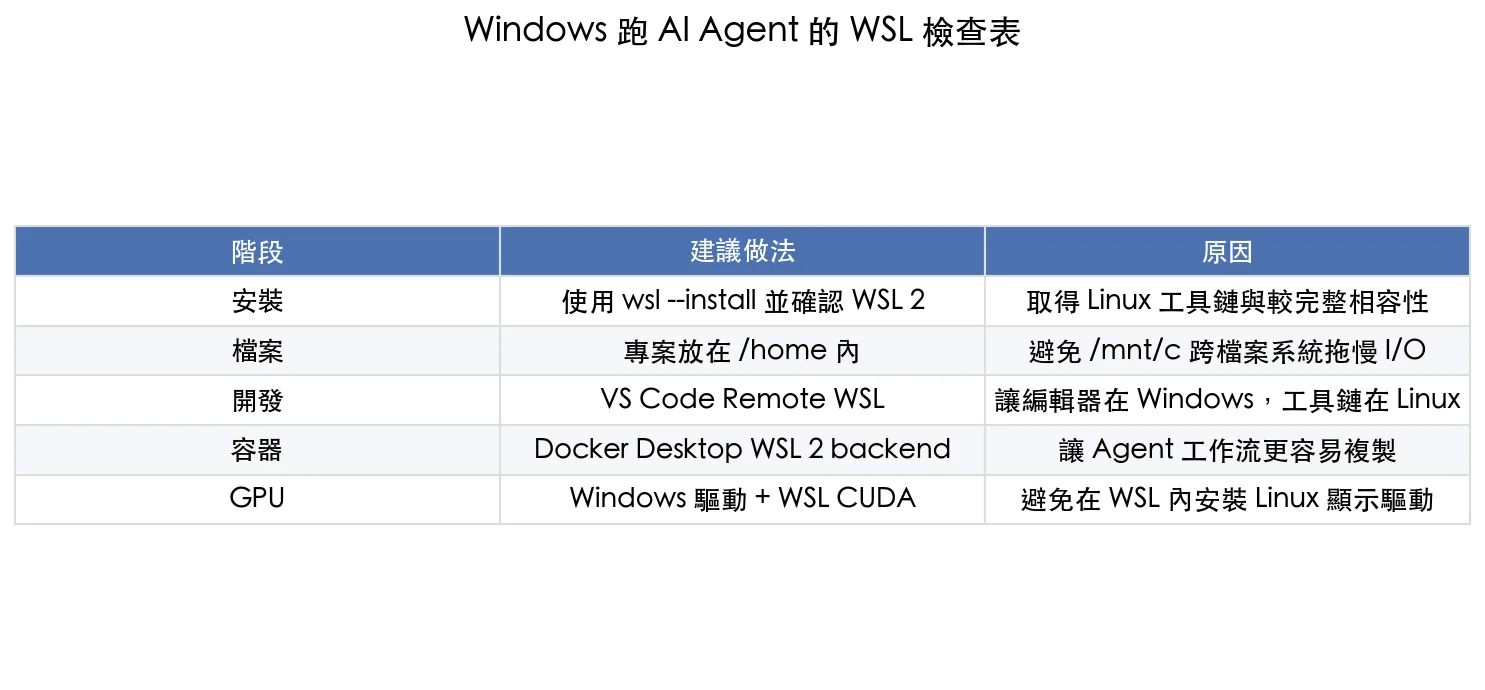
階段 建議做法 原因 安裝 使用 wsl –install 並確認 WSL 2 取得 Linux 工具鏈與較完整相容性 檔案 專案放在 /home 內 避免 /mnt/c 跨檔案系統拖慢 I/O 開發 VS Code Remote WSL 讓編輯器在 Windows,工具鏈在 Linux 容器 Docker Desktop WSL 2 backend 讓 Agent 工作流更容易複製 GPU Windows 驅動 + WSL CUDA 避免在 WSL 內安裝 Linux 顯示驅動
WSL 跑 AI Agent 的重點不是只把 Ubuntu 裝起來,而是把檔案、編輯器、容器和 GPU 全部放在正確位置。 我會怎麼配置一台 Windows AI Agent 機
如果是我自己整理一台 Windows AI Agent 工作機,我會照這個順序來:
Windows Terminal 裝好,PowerShell 和 Ubuntu 分開使用。
WSL 2 裝 Ubuntu,專案目錄固定放在 `/home`。
VS Code 用 Remote WSL 開專案。
Python 用 uv 或 venv 管,Node 用 nvm 或 corepack 管。
需要服務就用 Docker compose,不把資料庫亂裝在 Windows 裡。
需要本地模型時,先確認 NVIDIA Windows driver、WSL kernel、CUDA toolkit 和推理框架版本。
如果你的目標是 本地大模型推理框架 ,WSL 可以讓 vLLM、SGLang、llama.cpp、Ollama 周邊工具更接近 Linux 使用方式。如果你的目標是 Agent 開發,WSL 則可以讓 shell、瀏覽器自動化、檔案操作和套件安裝更穩。
我的判斷
Windows 不需要變成 Mac,也不需要硬裝成 Linux。最好的方式是讓 Windows 做它擅長的事:桌面、驅動、硬體管理、遊戲和日常軟體。讓 WSL 做它擅長的事:Linux 工具鏈、開源套件、容器、AI Agent 環境。
真正穩的 Windows AI Agent 工作流,不是把所有東西混在同一個地方,而是把邊界分清楚。Windows 管外層,WSL 管開發環境,Docker 管可重現服務,GPU driver 留在 Windows,專案檔案留在 Linux 檔案系統。這樣才比較不會每次換工具就重修一次環境。
延伸資源
FAQ
Windows 跑 AI Agent 一定要用 WSL 嗎?
不一定,但如果工具鏈偏 Linux、需要 Python、Node、Docker、CUDA 或多個開源套件,WSL 2 通常比純 Windows 環境穩定。
WSL 專案檔案應該放哪裡?
如果主要在 Linux 命令列工作,專案最好放在 WSL 的 `/home` 目錄,不要放在 `/mnt/c`,這樣 I/O 效能和權限行為通常比較穩。
VS Code 可以直接編輯 WSL 專案嗎?
可以。建議使用 VS Code Remote WSL,讓編輯器留在 Windows,語言工具鏈、終端機和套件環境跑在 WSL 裡。
WSL 可以用 NVIDIA GPU 嗎?
可以,但要用支援 WSL 的 Windows NVIDIA 驅動。重點是不要在 WSL 裡安裝 Linux 顯示驅動,CUDA 驅動會從 Windows 端映射進 WSL。
Docker Desktop 和 WSL 2 有什麼關係?
Docker Desktop 可以使用 WSL 2 backend,讓 Windows 上的容器工作流更接近 Linux 開發環境,適合需要複製 AI Agent 服務環境的人。
by Rain Chu 7 月 15, 2026 | AI , 語音合成 , 語音辨識
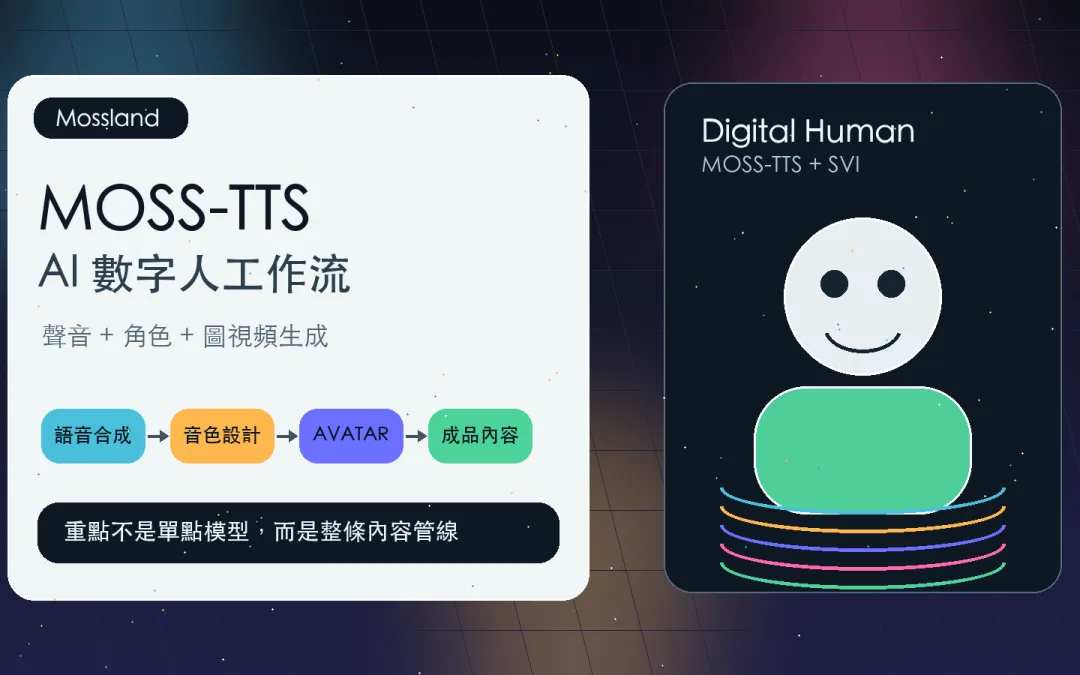
AI 數字人最容易卡住的地方,不是單一模型不夠強,而是聲音、口型、表情、角色圖像和剪輯工具分散在不同地方。Mossland 值得注意的地方,是它把語音創作和圖視頻生成放進同一個平台,讓「先有聲音,再有角色,再變成可交付內容」這條路更短。
這次重點可以拆成三個部分:
第一是 MOSS-TTS V1.5 這類更有情緒與控制能力的語音模型。
第二是 Bernini-R SVI 這類數字人動態表現端。
第三是 Mossland 作為創作平台,把音色庫、資產庫、工具集和 AVATAR 串起來。
先講結論
Mossland 不是單純 TTS 網站,而是一站式 AI 語音與圖視頻創作平台。
MOSS-TTS 的價值在聲音品質、音色控制、長文本穩定性和零樣本聲音復刻。
MOSS-TTSD 補上多角色長對話,對播客、短劇、互動內容和教學旁白更有用。
Bernini-R SVI 的定位可以放在「讓角色動起來」這一端,和 TTS 組合後才像完整數字人工作流。
如果你已經在研究 數字人模型與 RunningHub 工作流 ,Mossland 這類平台可以當作更偏創作者的整合入口。
Mossland 的平台定位
Mossland 官網把功能分成幾個入口:語音合成、音色設計、音頻轉寫、音色轉換、音頻降噪、圖視頻生成和 AVATAR 數字人。這個排列很清楚,它不是只做聲音,而是想把內容生產流程往後接到視覺端。
對創作者來說,這種平台最直接的價值是少切工具,以前可能要先用 TTS 生旁白,再到另一個工具做口型或角色動態,最後再進剪輯軟體,Mossland 的方向是把聲音、素材、模板和數字人放在同一個工作台裡。
這也跟 RunningHub 把 ComfyUI 工作流平台化 的邏輯相似,底層可能有多個模型和流程,但真正讓非工程使用者覺得好用的,是模板、入口、資產管理和可重複的工作流。
MOSS-TTS 的重點不是只會念字
MOSS-TTS Technical Report 把 MOSS-TTS 定位成語音生成基礎模型,它採用離散音訊 token、自回歸建模和大規模預訓練,並建立在 MOSS-Audio-Tokenizer 上。
真正值得注意的是控制能力,MOSS-TTS 支援零樣本聲音復刻、token 級時長控制、音素與拼音級發音控制、中英切換和長文本穩定生成。這些能力對數字人很重要,因為數字人不是只要聲音像,還要節奏、情緒和發音能配合角色。
如果你之前看過 Qwen3-TTS 和音色設計 ,就會知道現在開源語音模型的競爭,已經不只是「像不像真人」。更重要的是能不能穩定控制語氣、角色感、長句節奏和跨語言表現。
MOSS-TTSD 補上長對話和多角色
一般 TTS 很適合單人旁白,但數字人內容常常需要對話、角色切換和長時間穩定輸出,MOSS-TTSD 的定位就是 Text to Spoken Dialogue,可以從帶有說話者標籤的劇本生成多角色語音。
論文提到它支援最長 60 分鐘單次合成、最多 5 位說話者的多方對話,也支援用短參考音訊做零樣本聲音復刻。這對播客、動態解說、短劇、互動內容都很關鍵,因為真正有用的不是一小段試聽,而是能不能撐完整內容。
這也呼應我之前整理 本地語音 AI 統一底座 時的觀察:語音模型下一步要處理的不只是音質,而是長上下文、角色一致性、語者歸屬和整段內容的穩定性。
Bernini-R SVI 的角色:讓聲音變成可看的角色
如果 MOSS-TTS 負責聲音,那 Bernini-R SVI 這類模型就可以理解成數字人畫面端,也就是把角色圖像、動態表現、口型或視覺演出接上語音,讓內容從「一段旁白」變成「一個角色在說話」。
這裡最重要的不是單點能力,而是組合後的可交付性,單獨一個漂亮聲音不一定能變成短影音,單獨一張角色圖也不一定能支撐內容。但當語音模型和 SVI 數字人動態搭起來,就比較接近創作者每天能用的工作流。
這和 讓照片動起來的數字人方向 是同一條線,只是現在更重視整套內容管線,而不是單次展示。
Mossland 工作流怎麼看
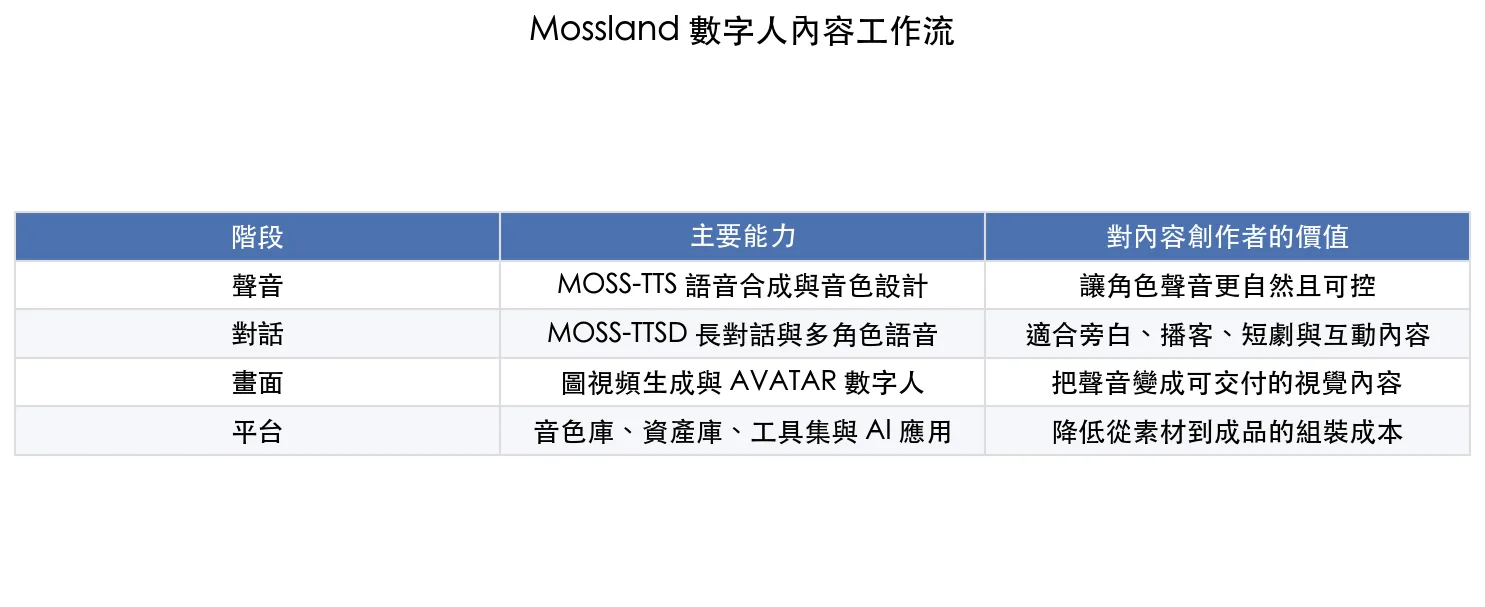
階段 主要能力 對內容創作者的價值 聲音 MOSS-TTS 語音合成與音色設計 讓角色聲音更自然且可控 對話 MOSS-TTSD 長對話與多角色語音 適合旁白、播客、短劇與互動內容 畫面 圖視頻生成與 AVATAR 數字人 把聲音變成可交付的視覺內容 平台 音色庫、資產庫、工具集與 AI 應用 降低從素材到成品的組裝成本
Mossland 的價值在於把聲音、對話、畫面和平台工具接成一條內容生產線。 適合誰使用
第一類是短影音創作者。這類人需要快速產出角色旁白、社群內容、產品介紹和教學短片,平台化工具會比自己串模型更省時間。
第二類是品牌或電商內容團隊。商品介紹、活動宣傳、客服說明和直播切片都需要大量聲音與角色素材。只要品質穩定,數字人可以降低重複錄製成本。
第三類是 AI 工作流玩家。這類人可能仍會偏好本地部署,但可以把 Mossland 當作快速驗證平台,先看聲音和角色組合是否有市場感,再決定要不要回到本地工作流重做。
我會注意的限制
第一,聲音好不代表數字人就自然。角色表情、口型同步、鏡頭節奏、身體動作和背景設計都會影響成品。很多數字人看起來不自然,不是 TTS 的問題,而是視覺端沒有跟上。
第二,平台好用不代表資料風險消失。如果要上傳真人聲音、商業腳本或品牌素材,要先確認授權、隱私和使用條款。聲音復刻尤其要小心,最好只用自己有權使用的聲音。
第三,開源免費不等於零成本。模型、平台、素材整理、後製、審稿和版權確認都要算進去。真正的成本常常不是生成,而是讓生成結果可以被公開使用。
我的判斷
Mossland 這類平台反映了一個很明確的趨勢:AI 內容工具正在從單點模型,變成可組裝的內容生產線。TTS 模型負責聲音,SVI 或數字人模型負責角色動態,平台負責模板、資產和交付流程。
如果你只是想研究模型,MOSS-TTS 和 MOSS-TTSD 的技術報告值得看。如果你想做內容,重點應該放在「整條流程能不能穩定產出」。這也是我會關注 Mossland 的原因,它不是只展示某個模型,而是把語音和視覺創作接在一起。
對台灣創作者來說,我會先用它測三件事:中文語氣是否自然,角色畫面是否能承受社群平台放大檢視,整體流程是否比自己串 ComfyUI 或本地工具更省時間。這三件事過關,才有真正導入價值。
延伸資源
FAQ
Mossland 是什麼?
Mossland 是 MOSI Studio 的一站式 AI 語音與圖視頻創作平台,提供語音合成、音色設計、音頻轉寫、音色轉換、降噪、圖視頻生成與 AVATAR 數字人等功能。
MOSS-TTS 適合做什麼?
MOSS-TTS 是語音生成基礎模型,重點包含零樣本聲音復刻、發音控制、長文本穩定生成、多語言與中英切換能力,適合旁白、角色配音和內容生產。
MOSS-TTSD 和一般 TTS 差在哪?
MOSS-TTSD 面向多角色長對話,可以用明確說話者標籤生成長篇對話,支援多方對話、長時間合成和短參考音訊聲音復刻,更適合播客、短劇和互動內容。
Bernini-R SVI 在工作流中扮演什麼角色?
Bernini-R SVI 可以理解成影像和數字人動態表現端,MOSS-TTS 負責聲音,SVI 負責讓角色畫面跟聲音一起變成可交付內容。
Mossland 適合本地部署玩家嗎?
如果目標是研究模型或完全離線,本地部署仍有價值。如果目標是快速做內容,Mossland 這類平台的優勢是把音色庫、工具集、模板和 AVATAR 串起來,降低組裝成本。

近期留言