by Rain Chu 3 月 25, 2022 | woocommerce , wordpress
網路上有很多解決在 woocommerce 的分類目錄中,隱藏無庫存商品的方法,但都不合我用,只好自己動手寫一個適合的,設計的思維是,在取得商品的之前 (pre_get_posts) ,我們判斷商品是否已經無庫存,是的話,我們就把發布狀態設定為私密 (private),型錄可見度設定為「隱藏」
在 functions.php 中加入以下的程式碼
// 在目錄中隱藏無庫存的商品
add_action( 'pre_get_posts', 'custom_pre_get_posts_query' );
function custom_pre_get_posts_query( $q ) {
if ( ! $q->is_main_query() ) return;
if ( ! $q->is_post_type_archive() ) return;
if ( ! is_admin() ) {

$q->set( 'tax_query', array(array(
'taxonomy' => 'product_cat',
'field' => 'slug',
'terms' => array( 'sb00001' ), // 設定在那幾個目錄中要處理,多個目錄的話用逗號分隔
'operator' => 'NOT IN',
'post_status' => 'private',
)));
}
remove_action( 'pre_get_posts', 'custom_pre_get_posts_query' );
}
2022-03-28 更新
上面的寫法不一定成功,補充另一個寫法,只要在商品庫存量被變更的時候,去將商品的顯示狀態設定成隱藏起來就可以了
add_action( 'pre_get_posts', 'custom_pre_get_posts_query' );
function custom_pre_get_posts_query( $q ) {
if ( ! $q->is_main_query() ) return;
if ( ! $q->is_post_type_archive() ) return;
if ( ! is_admin() ) {

global $wpdb;
$results = $wpdb->get_results(
'SELECT * FROM `wp_aws_index` c WHERE c.id in (SELECT a.ID FROM `wp_posts` a
join `wp_postmeta` b ON a.ID = b.post_id
where b.meta_key = "_stock_status" and b.meta_value = "outofstock");

UPDATE `wp_aws_index` c SET c.visibility = "hidden" WHERE c.id in
(SELECT a.ID FROM `wp_posts` a join `wp_postmeta` b ON a.ID = b.post_id where b.meta_key = "_stock_status" and b.meta_value = "outofstock");

DELETE FROM `wp_aws_cache`;
delete from `wp_term_relationships` WHERE `term_taxonomy_id` = 7 AND `object_id` in (SELECT a.ID FROM `wp_posts` a join `wp_postmeta` b ON a.ID = b.post_id where b.meta_key = "_stock_status" and b.meta_value = "outofstock");
INSERT INTO `wp_term_relationships` (`object_id`, `term_taxonomy_id`) VALUES ((SELECT a.ID FROM `wp_posts` a join `wp_postmeta` b ON a.ID = b.post_id where b.meta_key = "_stock_status" and b.meta_value = "outofstock"), 7);'
, OBJECT);

remove_action( 'pre_get_posts', 'custom_pre_get_posts_query' );
}
by Rain Chu 3 月 22, 2022 | PHP , woocommerce , wordpress
點選商品圖片後的行為網址
客戶常常是想要快速結帳,所以通常希望在商品頁面中,點選圖片就可以直接進入結帳了,這時候在 wordpress woocommerce 中沒有特別好用的 Pugin 可以利用,我的解法是在佈景主題中的 functions.php ,加入下面的程式碼片段,其中add-to-cart=id , id 指的是商品 id , quantity=1,1 是數量。
點選圖片後,會直接到結帳頁面,/checkout/?add-to-cart=’.$product->get_id().’quantity=1 點選圖片後,會直接到購物車,/cart/?add-to-cart=’.$product->get_id().’&quantity=1 /?add-to-cart=’.$product->get_id() functions.php
// woocommerce
// 設定圖片上的商品連結
if ( ! function_exists( 'woocommerce_template_loop_product_link_open' ) ) {
	/**
	 * Insert the opening anchor tag for products in the loop.
	 */
	function woocommerce_template_loop_product_link_open() {
		global $product;

        //原先的設定
		//$link = apply_filters( 'woocommerce_loop_product_link', get_the_permalink(), $product );

      	// 1.改成直接到結帳頁面中
        $link = '/checkout/?add-to-cart='.$product->get_id().'&quantity=1';

      	// 2.點選圖片直接會到購物車中
      	$link = '/cart/?add-to-cart='.$product->get_id().'&quantity=1';

      	// 3.點選圖片後不跳轉,但會加入到購物車中
      	$link = '/?add-to-cart='.$product->get_id();

		echo '<a href="' . esc_url( $link ) . '" class="woocommerce-LoopProduct-link woocommerce-loop-product__link">';
	}
}
搜尋商品後,點選產品清單中的圖片直接進入購物車
/wp-content/themes/themename/template-tags.php
修改$permalink = !empty( $args[‘permalink’] ) ? $args[‘permalink’] : ‘/checkout/?add-to-cart=’.$post_id.’quantity=1′;
function et_extra_get_post_thumb( $args = array() ) {
	$default_args = array(
		'post_id'                    => 0,
		'size'                       => '',
		'height'                     => 50,
		'width'                      => 50,
		'title'                      => '',
		'link_wrapped'               => true,
		'permalink'                  => '',
		'a_class'                    => array(),
		'img_class'                  => array(),
		'img_style'                  => '',
		'img_after'                  => '', // Note: this value is not escaped/sanitized, and should be used for internal purposes only, not any user input
		'post_format_thumb_fallback' => false,
		'fallback'                   => '',
		'thumb_src'                  => '',
		'return'                     => 'img',
	);

	$args = wp_parse_args( $args, $default_args );

	$post_id = $args['post_id'] ? $args['post_id'] : get_the_ID();

	// add to cart link
	//$permalink = !empty( $args['permalink'] ) ? $args['permalink'] : get_the_permalink( $post_id );
	$permalink = !empty( $args['permalink'] ) ? $args['permalink'] : '/checkout/?add-to-cart='.$post_id.'quantity=1';

	$title = !empty( $args['title'] ) ? $args['title'] : get_the_title( $post_id );

	$width = (int) apply_filters( 'et_extra_post_thumbnail_width', $args['width'] );
	$height = (int) apply_filters( 'et_extra_post_thumbnail_height', $args['height'] );
	$size = !empty( $args['size'] ) ? $args['size'] : array( $width, $height );
	$thumb_src = $args['thumb_src'];
	$img_style = $args['img_style'];

	$thumbnail_id = get_post_thumbnail_id( $post_id );

	if ( !$thumbnail_id && !$args['thumb_src'] ) {
		if ( $args['post_format_thumb_fallback'] ) {
			$post_format = et_get_post_format();
			if ( in_array( $post_format, array( 'video', 'quote', 'link', 'audio', 'map', 'text' ) ) ) {
				$thumb_src = et_get_post_format_thumb( $post_format, 'thumb' );
			} else {
				$thumb_src = et_get_post_format_thumb( 'text', 'thumb' );
			}
		} else if ( !empty( $args['fallback'] ) ) {
			return $args['fallback'];
		} else {
			$thumb_src = et_get_post_format_thumb( 'text', 'icon' );
		}
	}

	if ( $thumbnail_id ) {
		list($thumb_src, $thumb_width, $thumb_height) = wp_get_attachment_image_src( $thumbnail_id, $size );
	}

	if ( 'thumb_src' === $args['return'] ) {
		return $thumb_src;
	}

	$image_output = sprintf(
		'<img src="%1$s" alt="%2$s"%3$s %4$s/>%5$s',
		esc_attr( $thumb_src ),
		esc_attr( $title ),
		( !empty( $args['img_class'] ) ? sprintf( ' class="%s"', esc_attr( implode( ' ', $args['img_class'] ) ) ) : '' ),
		( !empty( $img_style ) ? sprintf( ' style="%s"', esc_attr( $img_style ) ) : '' ),
		$args['img_after']
	);

	if ( $args['link_wrapped'] ) {
		$image_output = sprintf(
			'<a href="%1$s" title="%2$s"%3$s%5$s>
				%4$s
			</a>',
			esc_attr( $permalink ),
			esc_attr( $title ),
			( !empty( $args['a_class'] ) ? sprintf( ' class="%s"', esc_attr( implode( ' ', $args['a_class'] ) ) ) : '' ),
			$image_output,
			( !empty( $img_style ) ? sprintf( ' style="%s"', esc_attr( $img_style ) ) : '' )
		);
	}

	return $image_output;
}
by Rain Chu 3 月 10, 2022 | woocommerce , wordpress
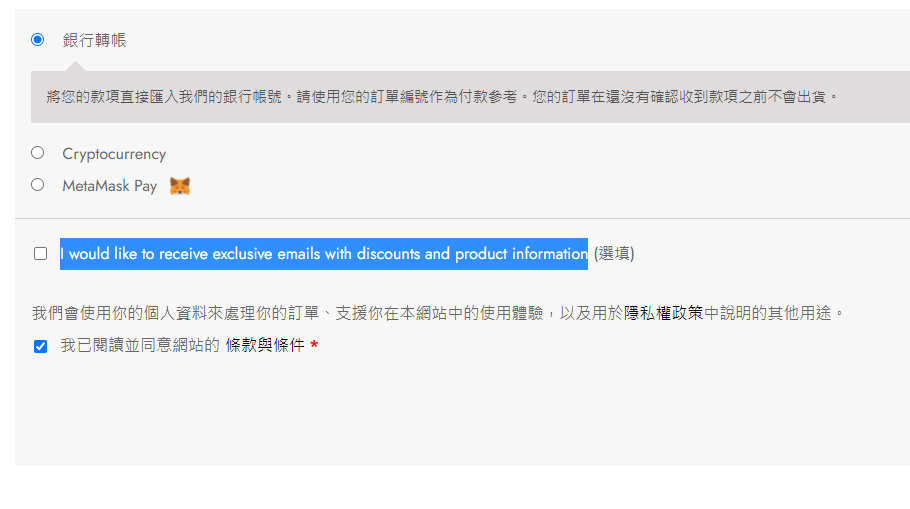
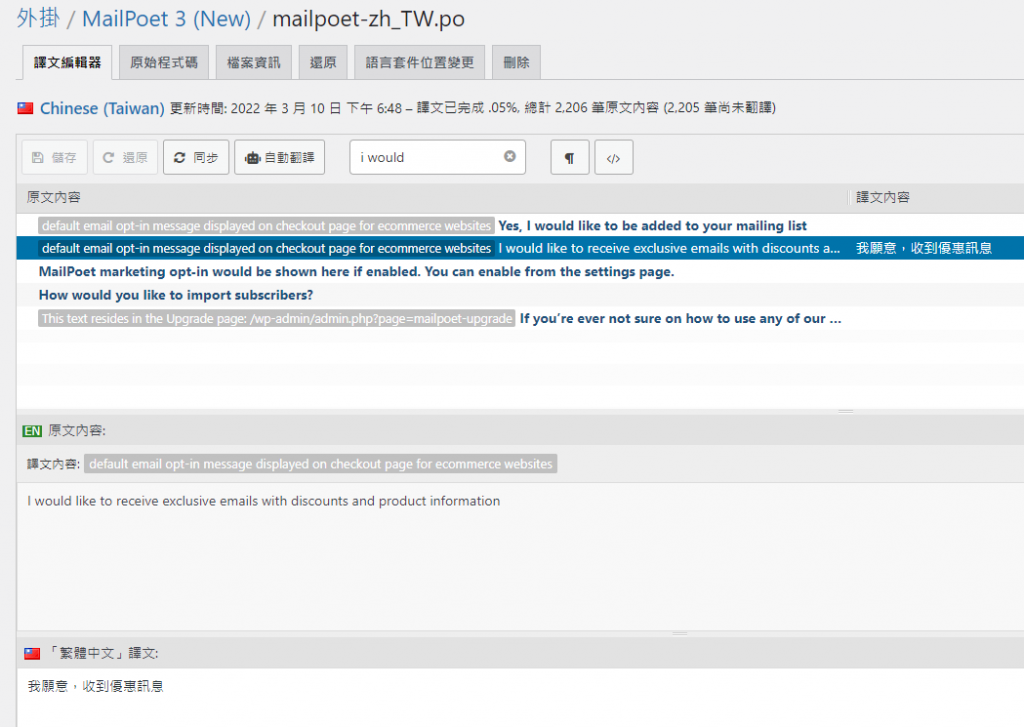
這次業主發現 woocommerce 在結帳的時候,會多出 I would like to receive exclusive emails with discounts and product information 這各選項讓消費者選擇,最後查找原因是多安裝了一個 Plugin 叫做 MailPoet 3 ,是用來收集名單的,要解決的方法可以去 MailPoet 3 中做設定,或是停用 MailPoet 3,也可以 Loco Translate 幫忙她解決英文轉中文的問題
解決方法
去 MailPoet 3 中做設定 停用 MailPoet 3 用翻譯軟體協助 Plugin 翻譯 採用 Loco Translate 幫忙英翻中
by Rain Chu 2 月 8, 2022 | PHP , woocommerce , wordpress
WordPress Woocommerce 中,如果是 B2B 的網站或是會員限定的網站,通常會有一個需求,不能對來賓客戶顯示金額,登入後,也應該要對每一個不同的客戶顯示不同的金額,這邊文章先提供如何對沒有登入的客戶隱藏價格,之後再提供不同來賓顯示不同金額
作法很簡單,將以下的程式碼片段,貼到你的佈景主題的 functions.php 即可
// 對訪客隱藏價格
add_filter('woocommerce_get_price_html',function($price){
    if(!is_user_logged_in()){
        return '' ;
    }
    else {
        return $price; // 返回原價
    }});

add_filter('woocommerce_cart_item_price','__return_false');
add_filter('woocommerce_cart_item_subtotal','__return_false');
Woocommerce 如何對不同的使用者權限做價格控制
add_filter( 'woocommerce_get_price_html', function( $price ) {
if ( is_admin() ) return $price;
$user = wp_get_current_user();
$hide_for_roles = array( 'wholesale', 'wholesale-silver', 'wholesale-gold' );
// If one of the user roles is in the list of roles to hide for.
if ( array_intersect( $user->roles, $hide_for_roles ) ) {
return ''; // Return empty string to hide.
}
return $price; // Return original price
} );
add_filter( 'woocommerce_cart_item_price', '__return_false' );
add_filter( 'woocommerce_cart_item_subtotal', '__return_false' );
Woocommerce 如何對不同的類別中的商品做價格控制
add_filter( 'woocommerce_get_price_html', function( $price, $product ) {
if ( is_admin() ) return $price;
// Hide for these category slugs / IDs
$hide_for_categories = array( 'clothes', 'electronics' );
// Don't show price when its in one of the categories
if ( has_term( $hide_for_categories, 'product_cat', $product->get_id() ) ) {
return '';
}
return $price; // Return original price
}, 10, 2 );
add_filter( 'woocommerce_cart_item_price', '__return_false' );
add_filter( 'woocommerce_cart_item_subtotal', '__return_false' );
Woocommerce 如何對特別的商品做價格控制
add_filter( 'woocommerce_get_price_html', function( $price, $product ) {
$hide_for_products = array( 89, 125 );
if ( in_array( $product->get_id(), $hide_for_products ) ) {
return '';
}
return $price; // Return original price
}, 10, 2 );
add_filter( 'woocommerce_cart_item_price', '__return_false' );
add_filter( 'woocommerce_cart_item_subtotal', '__return_false' );
好用外掛推薦
by Rain Chu 11 月 18, 2021 | PHP , woocommerce , wordpress
WooCommerce 預設安裝好會在結帳畫面中,出現「配送道不同的地址」的選項,並且預設是勾選起來的,常常有客戶需要把這個選項關閉,或是隱藏他,做法很多種,我這邊是以複製該 template 到自己的子佈景主題中,然後修改 PHP 的程式碼為主
先複製 wp-content/plugins/woocommerce/templates/checkout/form-shipping.php 到 wp-content/themes/[themes-child]/woocommerce/checkout/form-shipping.php
sudo cp /var/www/html/wp-content/plugins/woocommerce/templates/checkout/form-shipping.php /var/www/html/wp-content/themes/themes-child/woocommerce/checkout/form-shipping.php
2. 修改 form-shipping.php 的內容,將預設選項移除,以及將整個欄位隱藏
原先的程式碼如下
	<h3 id="ship-to-different-address">
			<label class="woocommerce-form__label woocommerce-form__label-for-checkbox checkbox">
				<input id="ship-to-different-address-checkbox" class="woocommerce-form__input woocommerce-form__input-checkbox input-checkbox" <?php checked( apply_filters( 'woocommerce_ship_to_different_address_checked', 'shipping' === get_option( 'woocommerce_ship_to_destination' ) ? 1 : 0 ), 1 ); ?> type="checkbox" name="ship_to_different_address" value="1" /> <span><?php esc_html_e( 'Ship to a different address?', 'woocommerce' ); ?></span>
			</label>
		</h3>
修改後的程式碼如下
	<h3 id="ship-to-different-address" style="display:none" >
			<label class="woocommerce-form__label woocommerce-form__label-for-checkbox checkbox">
				<input id="ship-to-different-address-checkbox" class="woocommerce-form__input woocommerce-form__input-checkbox input-checkbox" <?php checked( apply_filters( 'woocommerce_ship_to_different_address_checked', 'shipping' === get_option( 'woocommerce_ship_to_destination' ) ? 1 : 0 ), 0 ); ?> type="checkbox" name="ship_to_different_address" value="0" /> <span><?php esc_html_e( 'Ship to a different address?', 'woocommerce' ); ?></span>
			</label>
		</h3>
其中在 <h3> tag 中,加入 style=”display:none” ,在 ‘shipping’ === get_option 中,把傳回的數值調整成0,代表預設不會勾選,這樣就可以隱藏運送到不同的地址的選項了
參考資料

近期留言