by Rain Chu 3 月 14, 2023 | PHP , wordpress , 程式
如果需要在網站上固定執行一個程式碼,有非常多種的執行方法,本篇已 WordPress 為例,分別在不同的層級上介紹幾個大家常用的方法來說明,可以先簡單分類,由 WordPress (應用層)去執行的,Web Server 等級去執行的,PHP 層級執行的,原生 Server 等級去執行,外部執行,自己寫一隻程式執行,各有各的美,以上排序由簡->難。
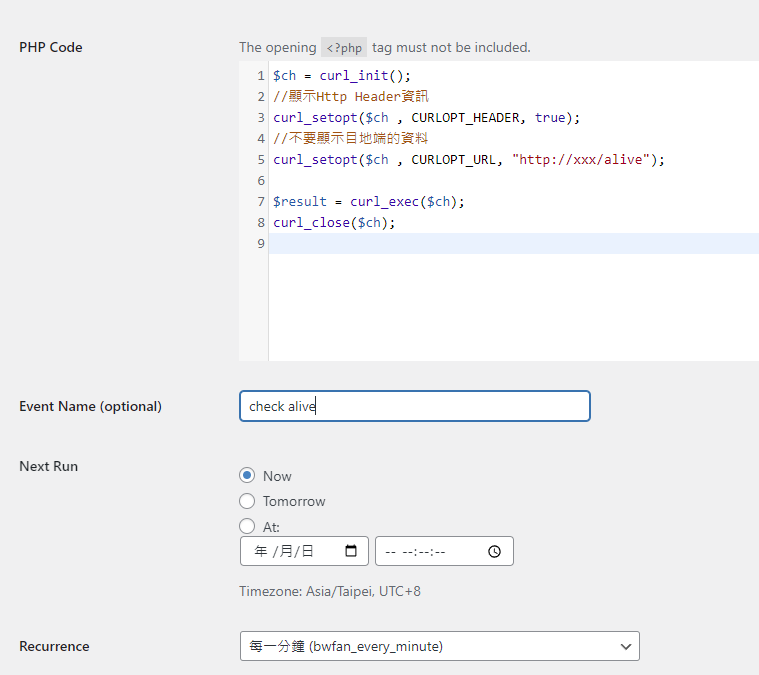
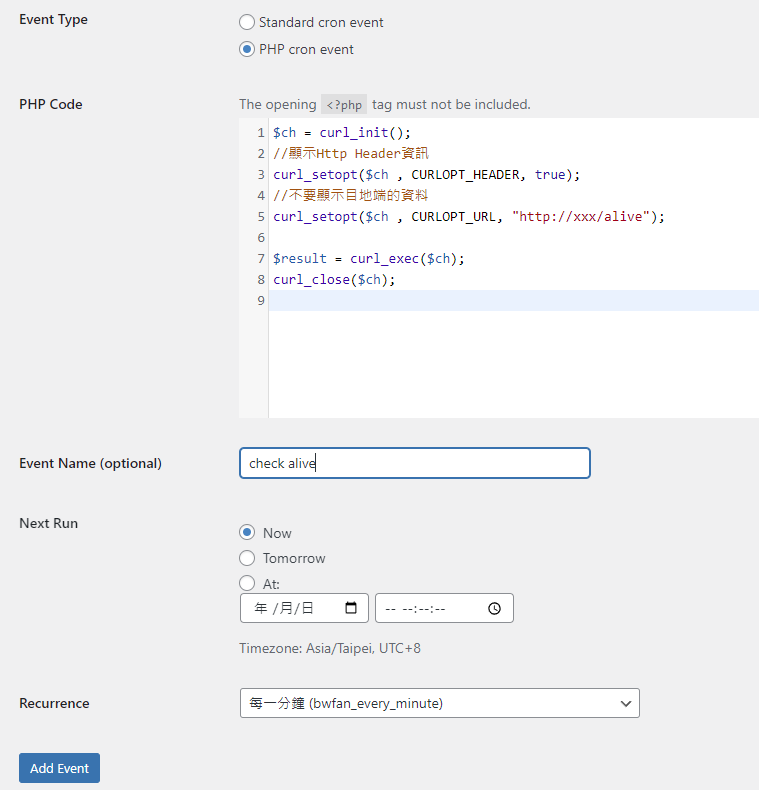
首先介紹最簡單的外掛處理法 WP Control ,可以節省很多事情,有優良的介面可以直接寫一般的 Cron 以及 PHP Cron
PHP CURL 寫法
by Rain Chu 3 月 10, 2023 | PHP , woocommerce , wordpress , 程式
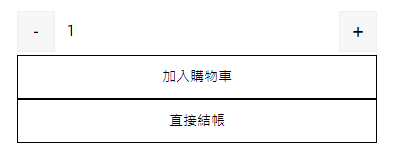
在台灣的消費習慣就是需要極致的快和簡單,所以我們就是要有能在 WordPress 的 WooCommerce 中一鍵結帳的功能,這功能其實有很多外掛可以達成,但為了一個按鈕加了一個外掛,總覺得用牛刀在殺雞,還是直接在 functions.php 中加入程式碼比較快,能改的東西也比較多。
woocommerce 商品 一鍵購物 修改 functions.php
找到佈景主題下的 functions.php 在後面加入以下的程式碼
add_action( 'wp_enqueue_scripts', 'child_enqueue_styles', 15 );
function addOneClickCheckoutBtn() {
    // 取得商品ID
    $current_product_id = get_the_ID();
    // 依據商品ID取得商品
    $product = wc_get_product( $current_product_id );
    // 取得結帳網址
    $checkout_url = WC()->cart->get_checkout_url();
    // 只在簡單商品中運行
    if( $product->is_type( 'simple' ) ){
        ?>
        <script>
            jQuery(function($) {
                   $(".custom-checkout-btn").on("click", function()
                    {
                       $(this).attr("href", function()
                        {
                            return this.href + '&quantity=' + $('input.qty').val();
                        });
                    });?>
            });
        </script>
        <style>
        .raiseup_one_click_checkout_btn {
            margin: 0px 1em !important;
        }
        </style>
        <?php
        echo '<a href="'.$checkout_url.'?add-to-cart='.$current_product_id.'" class="single_add_to_cart_button button raiseup_one_click_checkout_btn">直接結帳</a>';
    }
}
add_action( 'woocommerce_after_add_to_cart_button', 'addOneClickCheckoutBtn' );
修改位置、顏色 CSS 已符合你的商品頁面
程式碼中,有新增一個 CSS 的類別 raiseup_one_click_checkout_btn ,可以透過以下的程式碼去修正按鈕的顏色、字型大小
        <style>
        .raiseup_one_click_checkout_btn {
            margin: 0px 1em !important;
        }
        </style>
by Rain Chu 3 月 2, 2023 | PHP , wordpress , 程式
手機版本以及電腦版本的網頁共存的方法很多種,但總是要很多時候需要最佳化,當然現在流行的是採用AMP來處理手機頁面,每一種都有自己適用的場景,今天要介紹的是全手動自刻PHP程式碼處理的方法,透過 WP 內建的兩個函式來偵測使用者是否用手機看你的網頁,是的話就導引到手機專用的網頁上。
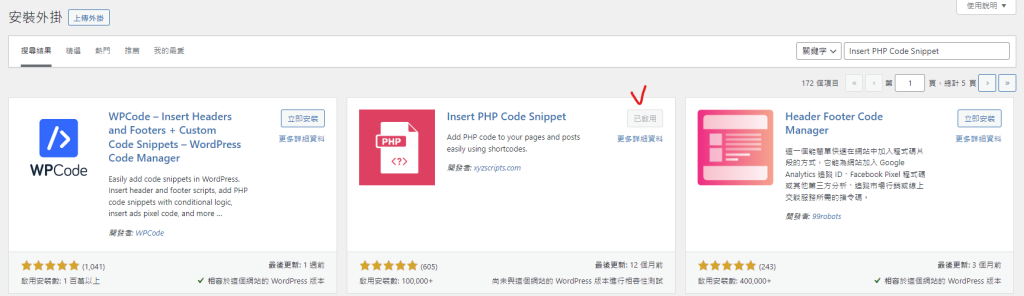
先準備好可以在你的頁面內直接寫PHP的外掛 Insert PHP Code Snippet
在外掛內搜尋 Insert PHP Code Snippet,如下圖打勾處
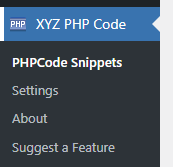
安裝完畢後,你可以在後台的主選單中找到 XYZ PHP Code,選擇 PHPCode Snippets,我們來寫一支很簡單的程式碼,當然你也可以用自己習慣的程式碼外掛處理
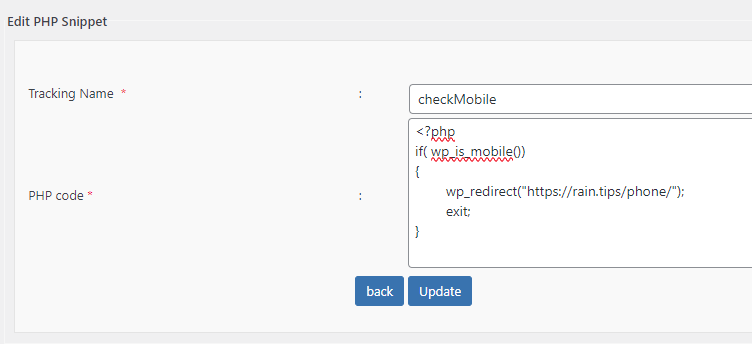
PHPCode Snippets 新增一筆程式碼,我把它命名為 checkMobile,裡面內容也很簡單,就是偵測到客戶用手機看,我們就導引到手機的頁面上
新增 PHP Code Snippet 利用 WP 內建的 wp_is_mobile() 和 wp_redirect() 就可以達到想要的效果
<?php
if( wp_is_mobile())
{
	wp_redirect("https://rain.tips/phone/");
	exit;
}
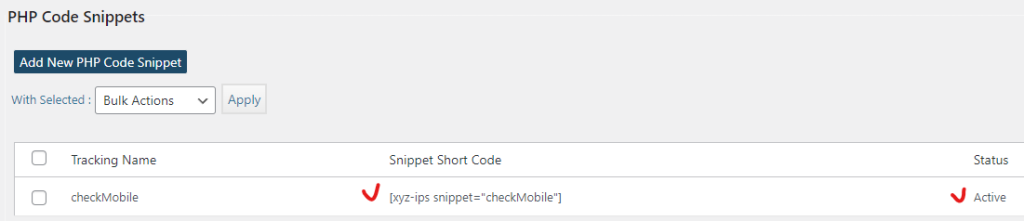
wp checkmobile 寫完存檔後,就可以看到 Snippet Short Code 狀態是 Active ,把Short Code複製起來,並且貼到你的頁面或是文章中就可以用了
by Rain Chu 2 月 15, 2023 | ASP.NET , 程式
當在撰寫 ASP.NET 4.0 以上 WebForm 的程式碼時候,如果要用 Request 的方法帶 XML 或是 JSON DATA,會遇到跳出「具有潛在危險 Request.Form 的值已從用戶端偵測到」的錯誤,解決方法可以在該頁面上面標註ValidateRequest=”false”
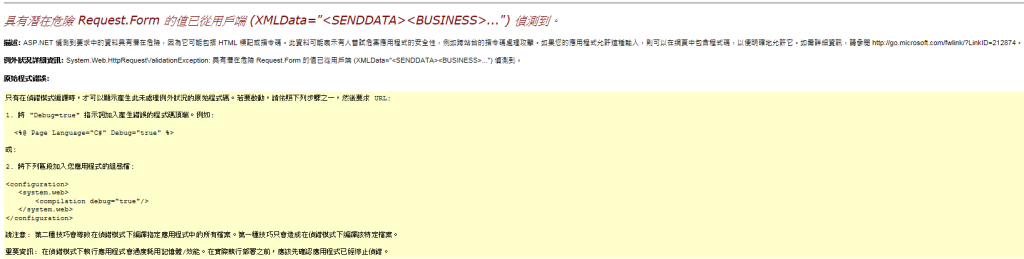
當你遇到錯誤訊息如下時候
可以到 xxx.aspx 中的 page 定義中,去修改設定成
<%@ Page Language="C#" AutoEventWireup="true" CodeBehind="home.aspx.cs" Inherits="xxx" ValidateRequest="false" %> 參考資料如下
https://learn.microsoft.com/zh-tw/aspnet/whitepapers/request-validation
by Rain Chu 2 月 8, 2023 | PHP , wordpress
自動更新是個好功能,但因為 WordPress 本身的特性,外掛幾乎都是第三方寫的,總是難免會有很多的衝突,要求一個穩定的系統,只能把自動更新關閉,之後手動更新,確認沒有衝突後再讓他全站更新出去,才能確保穩定性,以下介紹幾種關閉自動更新的方法。
1.使用佈景主題內的 functions.php 寫入關閉自動更新的程式碼
將以下的程式碼放到佈景主題下的functions.php中即可
// 關閉自動更新以及通知
function remove_core_updates(){
global $wp_version;return(object) array('last_checked'=> time(),'version_checked'=> $wp_version,);
}
add_filter('pre_site_transient_update_core','remove_core_updates'); //hide updates for WordPress itself
add_filter('pre_site_transient_update_plugins','remove_core_updates'); //hide updates for all plugins000
add_filter('pre_site_transient_update_themes','remove_core_updates'); //hide updates for all themes
2.設定 wp-config.php 檔案
在 WP 的根目錄中,修改 wp-config.php ,將下面這一行加入即可
define( 'WP_AUTO_UPDATE_CORE', false ); 3.利用外掛來關閉自動更新
3.1 disable-admin-notices
https://clearfy.pro/disable-admin-notices/


近期留言